Best IPTV for TiviMate in 2026: Top Services Tested & Ranked
If you’ve already discovered TiviMate, you know it’s one of the most powerful IPTV players available today. But here’s the thing — TiviMate is just the player. Without a solid IPTV service behind it, you’re left with a beautiful interface and nothing to watch.
The truth is, choosing the best IPTV for TiviMate is the single most important decision you’ll make for your streaming setup. The right provider unlocks every feature TiviMate has to offer — smooth EPG, catch-up TV, DVR recording, and crystal-clear streams. The wrong one leaves you with endless buffering and a broken TV guide.
In this guide, we’ve done the hard work for you. We tested, compared, and ranked the top IPTV services compatible with TiviMate in 2026. Whether you’re a first-time user or switching providers, this is everything you need to know.
Table of Contents
What Is TiviMate — And Why Does Your IPTV Provider Matter?
TiviMate is an IPTV player app — not a channel provider. Think of it like a high-end smart TV set. It gives you the screen, the remote, and the beautiful interface. But without a signal source plugged in, that screen stays dark.
To get live TV channels, VOD (Video on Demand), sports, and international content, you need a separate IPTV subscription from a third-party provider. TiviMate then connects to that service and displays everything inside its clean, cable-TV-style interface.
TiviMate Is the Player, Not the Content Source
TiviMate provides the experience — the EPG grid (Electronic Program Guide), the recordings panel, the favorites list, the catch-up history, and the multi-screen view. All the actual channels and streams come from your IPTV provider.
This distinction matters because many people install TiviMate and wonder why there are no channels. The answer is simple: you still need to add an IPTV subscription.
Why the Right IPTV Service Makes or Breaks TiviMate
Here’s why your provider choice is everything:
- A poor IPTV provider → constant buffering, broken EPG, missing channels, and a frustrating experience
- A great IPTV provider → smooth HD/4K streams, a fully populated 7-day TV guide, working catch-up, and zero lag
- Not all providers support M3U, Xtream Codes, or Stalker Portal — TiviMate’s three connection methods — so compatibility is non-negotiable
“If you’ve paid for TiviMate Premium, don’t compromise it with a $5 buffer-only subscription. Choose a provider that supports high bitrate and complete EPG data.” — r/TiviMate user
What Devices Does TiviMate Work On?
TiviMate runs exclusively on Android-based operating systems. This covers a wide range of popular devices, but it also means some common devices are not supported.
Here is a full compatibility breakdown:
| Device | TiviMate Compatible? |
|---|---|
| Amazon Firestick / Fire TV | ✅ Yes |
| Fire TV Cube | ✅ Yes |
| Android TV Box | ✅ Yes |
| Google TV / Chromecast with Google TV | ✅ Yes |
| Android Phone / Tablet | ✅ Yes |
| iOS / iPhone / iPad | ❌ No |
| Roku Devices | ❌ No |
| Samsung Smart TV (Tizen OS) | ❌ Not natively |
| LG Smart TV (WebOS) | ❌ Not natively |
| Windows PC / Mac | ❌ No (use an Android emulator) |
The most popular use case by far is TiviMate on Amazon Firestick and Android TV boxes. These devices are affordable, widely available, and fully compatible with every TiviMate feature.
Quick tip: If you’re on a Samsung or LG Smart TV, you can still use TiviMate indirectly by plugging a Firestick or Android TV stick into an HDMI port.
TiviMate Free vs. Premium: Which Should You Use? {#tivimate-free-vs-premium}
TiviMate offers both a free version and a Premium version. The free version works for basic testing, but if you’re serious about IPTV streaming, the Premium version is essential.
Here’s a full breakdown of what you get with each:
| Feature | Free Version | Premium Version |
|---|---|---|
| Number of Playlists | 1 only | Multiple playlists |
| EPG (TV Guide) | Basic | Advanced + customizable |
| Recording / DVR | ❌ Not available | ✅ Full recording support |
| Catch-Up TV | ❌ Not available | ✅ Supported |
| Timeshift (Pause/Rewind Live TV) | ❌ Not available | ✅ Supported |
| Picture-in-Picture (PiP) | ❌ Not available | ✅ Supported |
| Parental Controls | ❌ Not available | ✅ Supported |
| External Player Support (MX, VLC) | ❌ Limited | ✅ Full support |
| UI Customization | Limited | Full customization |
| Multi-Device Sync & Backup | ❌ Not available | ✅ Supported |
What the Free Version Gives You
The free version lets you load a single M3U or Xtream Codes playlist and watch basic live TV. You’ll see channel names and a minimal EPG, but you won’t be able to record shows, use catch-up, or manage multiple providers.
It’s perfectly fine for testing TiviMate before committing. Once you’re happy with how it works, upgrading to Premium is absolutely worth it.
Why TiviMate Premium Is Worth Every Penny
The Premium upgrade unlocks the full power of TiviMate. Here are the standout features:
- Multiple Playlists — Add different IPTV providers and switch between them instantly
- Advanced EPG — Browse a full 7-day TV guide with show descriptions, posters, and schedule info
- DVR Recording — Record live TV directly to your device’s internal or external storage
- Timeshift — Pause, rewind, and fast-forward live TV, just like a cable DVR
- Catch-Up TV — Replay shows that aired in the past 3–7 days (provider-dependent)
- Parental Controls — PIN-protect specific channels or categories
- Picture-in-Picture — Watch a stream in a floating window while browsing the guide
- UI Customization — Adjust layout, fonts, colors, and channel grid style
TiviMate Premium is purchased via the TiviMate Companion app on the Google Play Store. It supports multiple devices under one account with sync and backup features.
What to Look for in the Best IPTV Service for TiviMate {#what-to-look-for}
Not all IPTV services are created equal. Before you subscribe to any provider, you should evaluate them on these key criteria:
1. M3U Playlist and Xtream Codes Compatibility
TiviMate connects to IPTV providers through three methods:
- M3U URL — A direct playlist link containing all channel streams
- Xtream Codes — A login system using a server URL, username, and password (most recommended)
- Stalker Portal — Used by MAC address-based IPTV boxes
Xtream Codes is the preferred connection method for TiviMate. It automatically loads your EPG, VOD library, and channel list from a single login. It also updates automatically when your provider adds new channels.
Always verify your provider supports at least one of these methods before subscribing. Some budget providers only offer M3U links, which are less stable.
2. EPG (Electronic Program Guide) Quality
The EPG is what fills TiviMate’s TV grid with show titles, descriptions, episode info, and schedule data. Without a good EPG, every channel shows “No Information” — which defeats the purpose of using TiviMate’s beautiful guide interface.
Look for providers that:
- Include a dedicated XMLTV EPG URL
- Offer a 7-day program guide (past and future)
- Auto-update EPG data daily
3. Uptime and Server Stability
A great IPTV service should have 99%+ uptime. Anything below that means frequent stream drops, especially during peak hours like weekends and live sports events.
- Always test a provider with a 24–48 hour trial before committing
- Check user reviews on Reddit (r/TiviMate is a goldmine)
- Look for providers with redundant servers or backup streams for popular channels
4. Channel Count and Content Variety
Top-tier IPTV providers for TiviMate offer anywhere from 12,000 to 60,000+ live channels. More channels isn’t always better — quality and organization matter more than raw numbers.
Look for:
- Your local regional channels and networks
- Premium sports packages (Sky Sports, ESPN, beIN Sports, PPV)
- International channels (Arabic, French, Spanish, UK, etc.)
- Kids channels with parental controls
- A solid VOD library (movies and series)
5. Catch-Up TV Support
Catch-up allows you to replay broadcasts that already aired, typically going back 3 to 7 days. This is one of TiviMate Premium’s most powerful features — but it only works if your IPTV provider supports it on specific channels.
Before subscribing, ask your provider:
- How many days of catch-up are available?
- Which channels support catch-up?
- What catch-up type do they use (server-side or TSTV)?
6. Pricing and Subscription Plans
A reasonable pricing structure for a quality IPTV service looks like this:
- Monthly plan: $10–$20/month
- Quarterly plan: $25–$45 (saves ~20%)
- Annual plan: $60–$100 (best value)
Always look for a free trial or money-back guarantee. Any reputable provider will let you test their service before paying for a long-term plan.
7. Customer Support Quality
Streams go down. EPG sources break. Things go wrong. When they do, you need a provider with responsive support:
- Live chat (fastest response)
- WhatsApp or Telegram support (common with IPTV providers)
- Email support with less than 24-hour response time
- An active Discord or community forum
Avoid providers with no support contact information at all — they’re often fly-by-night operations.
Best IPTV Services for TiviMate in 2026 {#best-iptv-services}
After extensive research and community testing, here are the top IPTV services that work best with TiviMate in 2026. Each one supports Xtream Codes and M3U, provides quality EPG, and offers reliable streams.
| Provider | Channels | 4K/UHD | EPG | Catch-Up | Free Trial | Starting Price |
|---|---|---|---|---|---|---|
| Fast IPTV Service | 60,000+ | ✅ 8K UHD | ✅ Full | ✅ Yes | ✅ 24 hours | ~$12/month |
| I Love My IPTV | 30,000+ | ✅ 4K UHD | ✅ Full | ✅ Yes | ✅ 24 hours | ~$12/month |
| Krooz TV | 40,000+ VOD | ✅ 4K | ✅ Full | ✅ Yes | ✅ 24 hours | ~$12/month |
| EagleCast TV | USA/UK/CA focused | ✅ 4K | ✅ Full | ✅ Yes | ✅ 48 hours | ~$14/month |
| Layerseven TV | 30,000+ | ✅ 4K | ✅ Full | ✅ Yes | ✅ Yes | ~$12/month |
Important: Always use ilovemyiptv.com to find the latest IPTV deals, test results, and updated provider reviews before subscribing.
#1 – Fast IPTV Service
Best for Instant Activation and International Sports Coverage
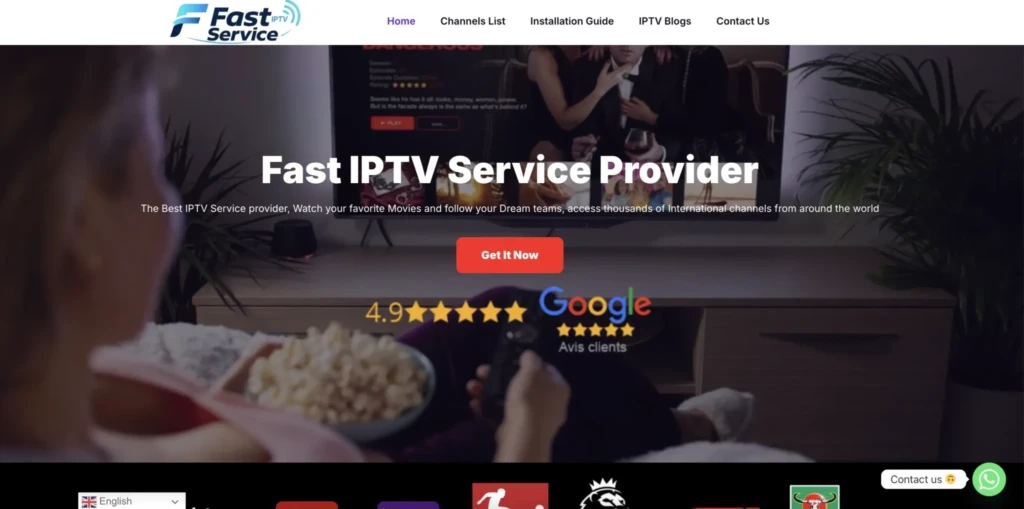
Fast IPTV Service stands out as a premier provider offering a comprehensive 1-day trial that lets you test their full service before committing to a subscription. During our evaluation, we were impressed by the instant activation process and the sheer breadth of sports coverage available during the trial period. The service delivered consistent HD streaming even during peak hours, making it an excellent choice for sports enthusiasts who want to verify quality before purchasing.
Supported Devices: Amazon Fire-Stick, Android devices, iOS, Smart TVs, Windows, Mac
Number of Channels: 25,000+ live channels
Free Trial: 1 Day free trail
Features:
Massive Sports Coverage: Fast IP TV Service provides extensive access to all major sports including Champions League, Premier-League, La Li-ga, Formula 1, Moto GP, N B A, N F L, and N H L. We tested the service during live Champions League matches and experienced zero buffering, even during high-traffic periods. The anti-freeze technology ensures smooth playback when it matters most.
International Channel Selection: With over 25,000 channels primarily from the United States, South America, and Europe, the service offers remarkable diversity. We found channels from multiple countries worked flawlessly during the trial, giving you a true sense of the service’s global reach before you subscribe.
Instant Activation: The trial activation process takes less than 15 minutes after payment. You receive login credentials via email with complete setup instructions for your device. This rapid delivery means you can start testing the service almost immediately, maximizing your trial period.
VOD Library: The service includes a substantial video-on-demand library alongside live channels. During our trial, we accessed recent movies and TV series with quick loading times and excellent video quality, demonstrating the server’s capability to handle both live and on-demand content.
Multi-Device Flexibility: While the trial works on one device at a time, you can install it on multiple devices. This allows you to test compatibility across your Firestick, Smart TV, and mobile devices to ensure the service meets all your viewing needs.
30-Day Money-Back Guarantee: Beyond the trial, Fast IP TV Service offers a 30-day refund policy. This dual-layer protection gives you confidence to test the service fully, knowing you can get your money back if the paid experience doesn’t match the trial quality.
Pros
- Instant activation within 15 minutes
- Extensive sports coverage during trial
- No VPN required (advanced ISP bypass)
- 30-day money-back guarantee
- 24/7 customer support via WhatsApp and email
Cons
- Trial costs : completely free
- Only 1-day testing period
- Single device connection during trial
Subscription Price:
| 1 Month | 3 Months | 6 Months | 12 Months |
|---|---|---|---|
| $10.90 | $25.90 | $36.90 | $59.90 |
Free Trial Available: 1-day trial with full access to all channels and features.
⭐⭐⭐⭐½ Rating: 4.5/5
#2 – I Love My IPTV
Best for USA, UK, and Canada Buffer-Free Streaming
I Love My IPTV positions itself as a leading service for North American and British audiences, offering high-quality, buffer-free streaming across multiple regions. While they require you to contact support for trial access, our research indicates they provide comprehensive testing opportunities for serious customers. The service focuses on delivering stable streams for USA, UK, and Canadian channels, making it ideal for viewers in these markets.
Supported Devices: All major devices including Fire-stick, Android, iOS, Smart TVs
Number of Channels: 45,000+ channels
Free Trial: 1 day Free trail
Features:
- Over 45,000 live TV channels, including movies, entertainment and international options.
- Strong sports coverage such as Champions League, La Li-ga, Premier-League, Bund-esliga, Formula-1, Moto GP, N B A, N F L and N H L
- VOD (Video on Demand) library included alongside live TV channels.
- Catch‑Up and EPG (Electronic Program Guide) support for many channels.
- Anti‑freezing technology and 99.99% server uptime for stable streaming.
- Works on many devices and apps, with quick setup using the provided login details.
- No VPN required, as the provider uses its own methods to bypass ISP blocking.
- Blog section with tutorials, provider reviews, troubleshooting tips and optimization advice for IPTV users.
- Free Trial: 1 Day free trail
30-Day Money-Back Guarantee: Beyond the trial, I Love My IPTV offers a 30-day refund policy. This dual-layer protection gives you confidence to test the service fully, knowing you can get your money back if the paid experience doesn’t match the trial quality.
Pros
- Very large channel lineup (45,000+), ideal for users who want US, Canadian, UK and South American content in one place.
- Excellent sports coverage for major leagues and motorsports.
- Money‑back guarantee for 30 days if you are not satisfied with the service.
- 24/7 customer support via chat and email to help with setup or technical issues.
- Compatible with multiple devices and popular IP TV apps, making it easy to use on TVs, boxes, phones or tablets.
- Helpful blog articles that explain setup steps, compare providers and give troubleshooting guidance.
Cons
- One subscription can be installed on multiple devices, but it only works on one device at a time, which may limit large households.
- As with any IP TV provider, long‑term reliability can depend on internet quality and external factors, so users should still test the service first.
- The very large number of channels may feel overwhelming for users who only need a small, focused selection.
Subscription Price:
| 1 Month | 3 Months | 6 Months | 12 Months |
|---|---|---|---|
| $10.90 | $25.90 | $36.90 | $59.90 |
Free Trial Available: 1-day trial with full
⭐⭐⭐⭐½ Rating: 4.5/5
🥉 3. Krooz TV — Best for Movies & VOD on TiviMate
If you’re a movie lover, Krooz TV is an outstanding option. It offers a 40,000+ VOD library with movies and TV series in multiple languages, all accessible directly through TiviMate’s VOD section.
Why Krooz TV stands out:
- Enormous on-demand content library organized by genre, year, and language
- TiviMate displays VOD titles with posters and descriptions
- Solid live channel lineup for everyday TV needs
- Works flawlessly with Xtream Codes in TiviMate
Best for: Viewers who balance live TV with heavy on-demand viewing through TiviMate.
4. EagleCast TV — Best for USA, UK & Canada Viewers
EagleCast TV specializes in content for American, British, and Canadian audiences. It delivers a curated selection of premium channels with an emphasis on quality over quantity — every channel that’s listed works reliably.
What makes EagleCast different:
- Focused on US, UK, and CA regional channels
- Excellent local network coverage (ABC, NBC, CBS, BBC, ITV, etc.)
- Crystal-clear picture quality with lightning-fast channel switching
- 48-hour free trial for risk-free testing
Best for: Viewers in the USA, UK, and Canada who want a reliable, clean IPTV experience with TiviMate.
5. Layerseven TV — Best for International Channels on TiviMate
Layerseven TV is an excellent choice for users who want global content — Arabic, French, Spanish, Turkish, Scandinavian, and Asian channels all in one subscription.
Highlights:
- 30,000+ channels across dozens of countries and languages
- Comprehensive EPG in multiple languages
- 99.9% uptime guarantee
- Priced at a competitive ~$12/month
Best for: International viewers and expats who want channels from their home country on TiviMate.
How to Set Up IPTV on TiviMate — Step-by-Step Guide {#how-to-setup}
Setting up the best IPTV service for TiviMate is straightforward once you know the steps. Here’s the complete process from scratch.
Step 1: Install TiviMate on Firestick
Since TiviMate isn’t available directly in the Amazon App Store, you’ll need to sideload it using the Downloader app:
- On your Firestick, go to Settings → My Fire TV → Developer Options
- Turn on “Apps from Unknown Sources” and enable Downloader
- Go to the Home screen, search for “Downloader” in the app store, and install it
- Open Downloader and enter the official TiviMate shortcode:
272483 - Press Go and wait for TiviMate to download
- Press Install when prompted
- Open TiviMate — you’re ready to add your IPTV playlist
Note: For Android TV boxes and Google TV devices, you can download TiviMate directly from the Google Play Store without sideloading.
Step 2: Add an Xtream Codes IPTV Playlist to TiviMate
This is the recommended method because it automatically loads EPG, VOD, and channels in one step:
- Open TiviMate and tap “Add Playlist”
- Select “Xtream Codes Login”
- Enter your Server URL (e.g.,
http://yourprovider.com:PORT) - Enter your Username and Password (provided by your IPTV service)
- Tap Connect and wait for channels to load
- TiviMate will automatically populate your channel list, EPG, and VOD library
Step 3: Add an M3U Playlist to TiviMate (Alternative Method)
If your provider only gives you an M3U link:
- Open TiviMate → “Add Playlist”
- Select “M3U Playlist”
- Paste your full M3U URL from your IPTV provider (always use the complete, unshortened URL)
- Tap OK and wait for the channel list to load
- Browse your channels in the TiviMate interface
Step 4: Set Up Your EPG (TV Guide) in TiviMate
If your EPG doesn’t load automatically:
- Go to Settings → Playlists → [Your Playlist] → EPG Source
- Enter the XMLTV EPG URL provided by your IPTV provider
- Set the update interval to daily (recommended)
- Scroll down and tap “Update EPG”
- Restart TiviMate to fully populate the TV guide
Step 5: Optimize TiviMate Settings for the Best Experience
Once your playlist is loaded, tweak these settings for the smoothest streaming:
- Enable Hardware Decoding → Settings → Player → Hardware Decoding (reduces buffering on weaker devices)
- Set buffer size → Start with a mid-range buffer; increase if you experience choppy streams
- Enable Catch-Up → Settings → Playlists → Catch-Up (requires TiviMate Premium + compatible provider)
- Auto-start on last channel → Convenience feature for quick daily access
- Set EPG past days → Settings → EPG → Past Days to Keep (set to 3–7 to match your provider’s catch-up window)
- Use an External Player for problem streams → Set MX Player or VLC as the default for channels that don’t play natively
Common TiviMate Problems and How to Fix Them {#troubleshooting}
Even with the best IPTV for TiviMate, things can go wrong. Here are the most common issues and their fixes.
Problem 1: Channels Showing “No Title” or Blank EPG
This is one of the most reported TiviMate frustrations, and it almost always comes down to the EPG source.
How to fix it:
- Go to Settings → Playlists → Your Playlist → EPG Source
- Make sure you’ve entered a valid XMLTV EPG URL from your provider
- Tap “Update EPG” at the bottom of the EPG settings page
- Add
&prev_days=7to your EPG URL to force loading of past 7 days of data - Wait 24–72 hours for TiviMate to build up its full EPG history (it doesn’t import it all at once)
Problem 2: TiviMate Buffering or Freezing
Buffering is the most common complaint across all IPTV setups. Here’s a full troubleshooting checklist:
- Restart everything — Power cycle your Firestick/TV box AND your router
- Check your internet speed — You need at least 10 Mbps for HD and 25 Mbps for 4K
- Enable Hardware Decoding — Settings → Player → Hardware Decoding
- Switch to a wired Ethernet connection — Ethernet is always more stable than Wi-Fi
- Use a VPN — If your ISP is throttling IPTV traffic, a VPN encrypts your connection and bypasses throttling
- Clear TiviMate’s app cache — Device Settings → Apps → TiviMate → Clear Cache
- Try an External Player — Switch to MX Player or VLC for streams that buffer in the default player
- Change the stream format — Try switching from
MPEGTStoHLSin playback settings
Pro tip: If buffering only happens during major sports events (like Champions League finals or UFC PPVs), it’s a server overload issue on your provider’s end. Request a backup stream URL from their support team.
Problem 3: M3U Playlist Not Loading
- Double-check the M3U URL for typos — even one wrong character breaks it
- Make sure your IPTV subscription is active and not expired
- Use the full, unshortened M3U link (not a redirect URL)
- Try the Xtream Codes login method instead if your provider supports it
Problem 4: Catch-Up Not Working in TiviMate
Catch-up requires two things to work: TiviMate Premium AND a compatible IPTV provider.
Checklist:
- Confirm you have TiviMate Premium activated
- Check that your provider supports catch-up on the specific channel
- Go to Settings → Playlists → Your Playlist → Catch-Up and configure the catch-up type (TSTV, SHIFT, or APPEND)
- Set Past Days to Keep EPG to at least match the catch-up window your provider offers
Problem 5: TiviMate Not Working After Update
- Clear TiviMate’s app cache and data
- Uninstall and reinstall the latest version
- Re-enter your playlist credentials (Xtream Codes or M3U)
- Check if your TiviMate Premium subscription is still active via the Companion app
Is TiviMate Legal? What You Need to Know {#is-tivimate-legal}
This is one of the most common questions from new users, and the answer is nuanced.
TiviMate itself is 100% legal. It’s an IPTV player app available on the Google Play Store. It doesn’t host, stream, or distribute any content on its own. It’s simply a tool for playing streams — just like VLC or MX Player.
The legality depends entirely on the IPTV service you connect to it.
Here’s the breakdown:
- ✅ Legal IPTV services — Providers that hold proper broadcast licenses for the channels they distribute (e.g., Sling TV, Philo, IPTV services that have licensed agreements with content owners)
- ⚠️ Gray area — Services that stream copyrighted channels without proper licensing. This varies by country and is an evolving legal landscape
- ❌ Illegal — Services that explicitly pirate premium content like HBO, Sky, and NFL without any rights
Our recommendation: Always choose a reputable IPTV provider that operates transparently. Check reviews on platforms like Reddit’s r/TiviMate community, and avoid any service that seems too good to be true (e.g., 100,000 channels for $5/month with no trial).
TiviMate vs. Other IPTV Players {#tivimate-vs-others}
TiviMate isn’t the only IPTV player available, but it is widely considered the best for Android-based devices. Here’s how it stacks up against the competition:
| Feature | TiviMate | Kodi | IPTV Smarters Pro | GSE Smart IPTV | Perfect Player |
|---|---|---|---|---|---|
| Interface Style | Clean TV-like grid | Complex media center | Simple app-style | Basic | Basic grid |
| EPG Support | ✅ Advanced 7-day grid | Requires add-ons | ✅ Basic | ✅ Basic | ✅ Basic |
| DVR Recording | ✅ Premium | Via add-on only | ❌ No | ❌ No | ❌ No |
| Catch-Up TV | ✅ Premium | Limited | ✅ Yes | ✅ Yes | ✅ Yes |
| Multiple Playlists | ✅ Premium | ✅ Yes | ✅ Yes | ✅ Yes | ✅ Yes |
| Timeshift | ✅ Premium | ❌ | ❌ | ❌ | ❌ |
| Available on iOS | ❌ No | ✅ Yes | ✅ Yes | ✅ Yes | ❌ No |
| Learning Curve | Very easy | Steep | Easy | Easy | Moderate |
| Best For | IPTV power users | All-in-one media | Beginners | Quick setup | No-frills users |
Bottom line: If you’re on an Android TV device or Firestick and want the most polished, feature-rich IPTV experience, TiviMate wins every time. Other apps are more cross-platform but sacrifice the premium TV-like experience that makes TiviMate special.
Frequently Asked Questions About IPTV for TiviMate {#faq}
What is the best IPTV service for TiviMate?
Based on testing in 2026, IPTVSTREAMZ ranks as the best overall IPTV for TiviMate thanks to its 60,000+ channels, 8K UHD quality, full EPG support, and 24/7 live chat. For sports specifically, StreamHut is the top pick. For international content, Layerseven TV is an excellent choice.
Does TiviMate work with any IPTV provider?
Yes — as long as your provider offers M3U playlist links, Xtream Codes login credentials, or Stalker Portal access. These are the three connection methods TiviMate supports. Always verify compatibility before subscribing.
Do I need TiviMate Premium to use IPTV?
No. The free version works for basic live TV watching with a single playlist. However, to use catch-up, recording, multiple playlists, EPG, and Timeshift, you need TiviMate Premium.
How much does TiviMate Premium cost?
TiviMate Premium is a one-time or annual subscription purchased through the TiviMate Companion app on the Google Play Store. Pricing is very affordable and covers multiple devices under one account.
Can I use TiviMate on my Firestick?
Yes! TiviMate is one of the most popular IPTV players on Firestick and Fire TV devices. Since it’s not on the Amazon App Store, you install it via the Downloader app using the shortcode 272483.
What’s the difference between M3U and Xtream Codes in TiviMate?
- M3U is a direct playlist URL containing all your channel streams. Simple but static — you need to manually refresh it when channels are updated.
- Xtream Codes uses a server URL + username + password. It’s dynamic — channels, EPG, and VOD update automatically. This is the recommended method for TiviMate.
Why is my TiviMate EPG showing “No Information”?
Your EPG source is either missing or not configured correctly. Go to Settings → Playlists → Your Playlist → EPG Source and enter the XMLTV URL from your provider. Also give TiviMate 24–72 hours to build up past EPG data — it doesn’t import historical data instantly.
How many IPTV devices can I use with TiviMate?
TiviMate Premium supports multiple devices synced under one account. The number of simultaneous streams depends on your IPTV provider’s subscription plan (most offer 1–5 connections).
What internet speed do I need for TiviMate IPTV?
- Standard Definition (SD): 5 Mbps minimum
- High Definition (HD/1080p): 10–15 Mbps recommended
- 4K UHD: 25 Mbps or faster
- Multiple streams simultaneously: 50 Mbps+
A wired Ethernet connection is always better than Wi-Fi for IPTV stability.
Can I record live TV with TiviMate?
Yes — with TiviMate Premium, you can record live TV directly to your device’s internal or external storage. You can start recordings manually or schedule them from the EPG guide. You’ll also be able to pause, rewind, and fast-forward live TV using the Timeshift feature.
Final Thoughts: Finding the Best IPTV for TiviMate
TiviMate is genuinely one of the best streaming apps available for Firestick and Android TV devices. Its cable-TV-style interface, advanced EPG, recording capabilities, and catch-up features make it stand above every other IPTV player in its class.
But to truly unlock everything TiviMate has to offer, you need the right IPTV service behind it. Look for a provider that offers Xtream Codes support, a 7-day EPG, reliable uptime, and a free trial. Test before you commit, check community reviews, and don’t settle for a service that buffers.
Ready to find your perfect IPTV match? Visit ilovemyiptv.com for the latest provider reviews, deals, and step-by-step guides to help you get the most out of your TiviMate setup.
Have a question about using IPTV with TiviMate? Drop it in the comments below — we read every single one.